
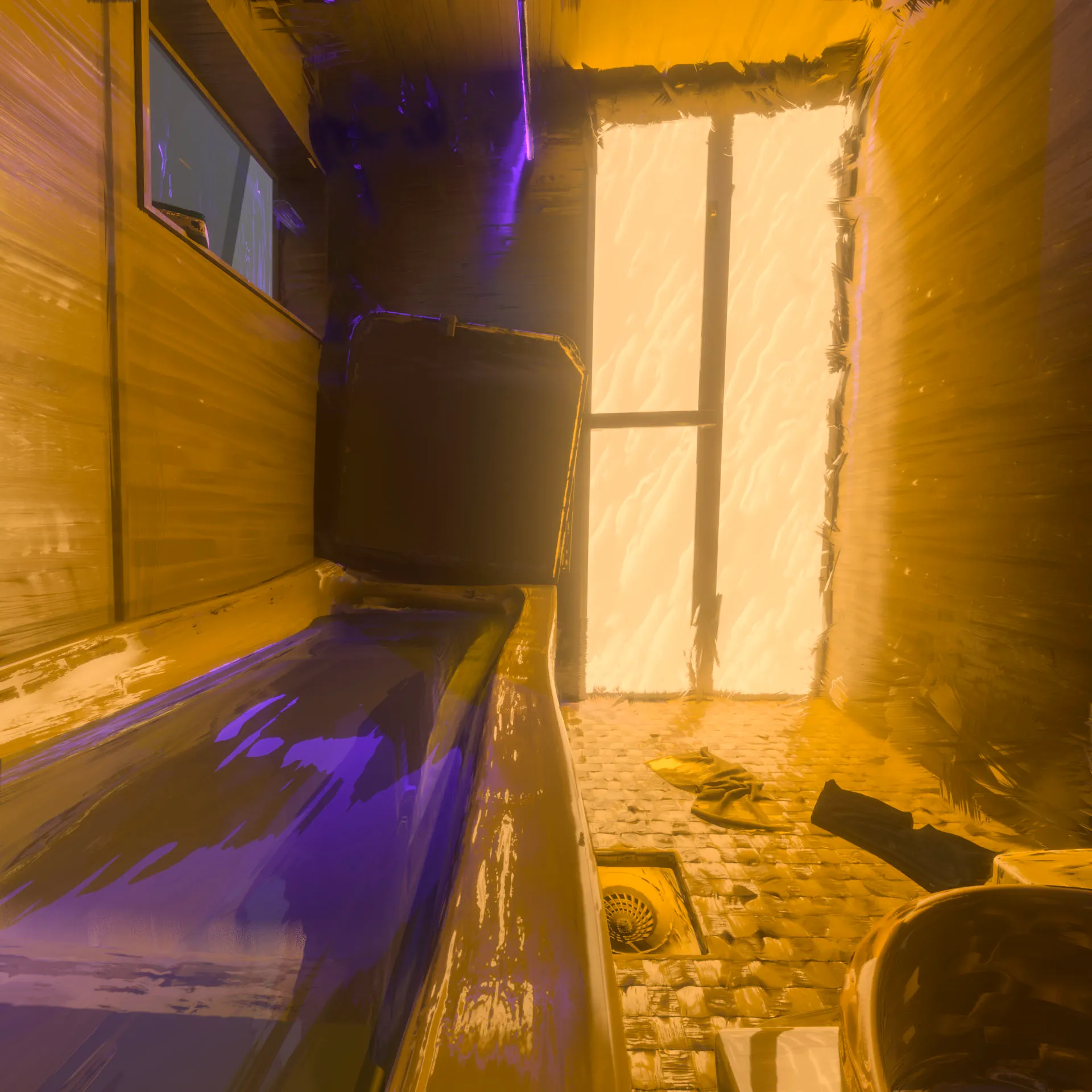
I create my pictures on an Apple HDR display with the High Dynamic Range option turned on in Blender, and I export every render as a 32-bit .exr file. On my screen the colors are exactly what I want. The problem is sharing that. My SDR versions lose the contrast and the fine highlight detail, and if you know my work you know how much I lean on cyan, orange and saturated color, so that loss is hard to accept.
This is the workflow I use to get an HDR JPEG that still looks right in Chrome.
Why social platforms flatten HDR pictures
For social networking sites I have not found a still-image method that survives upload. Every export I tried in JPEG, 16-bit PNG, AVIF and HEIC gets recompressed to the platform’s own settings, which drops the HDR data. Native iPhone HEIC files display well on Threads and Instagram, but an HDR picture exported as HEIC from the Mac Preview app does not. For now, publishing an HDR video in MP4 or H.265 is the only reliable way I have to keep the range on social media.
For the web itself, an HDR JPEG does work.
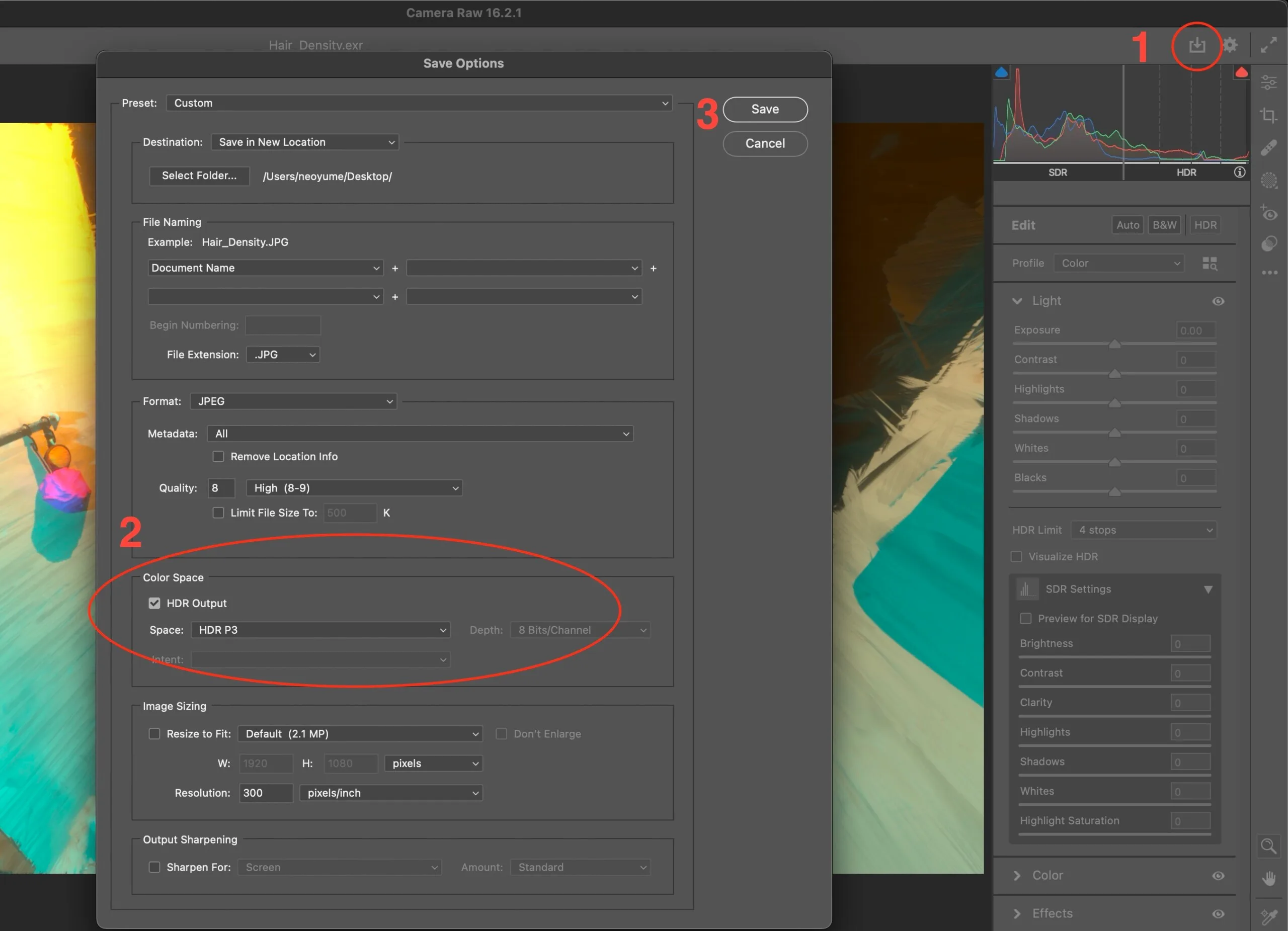
My workflow: .exr to HDR JPEG in Photoshop Camera Raw
- Open your
.exrfile in Photoshop, then go to Filter > Camera Raw Filter. - Make your edits in Camera Raw, then export an HDR version of the file.
- In the Save Options window, use the settings that worked for me as of 28 April 2024:
- Format: JPEG
- Color Space: check HDR and select P3, which is the most Apple-device-friendly option.
- Click Save.
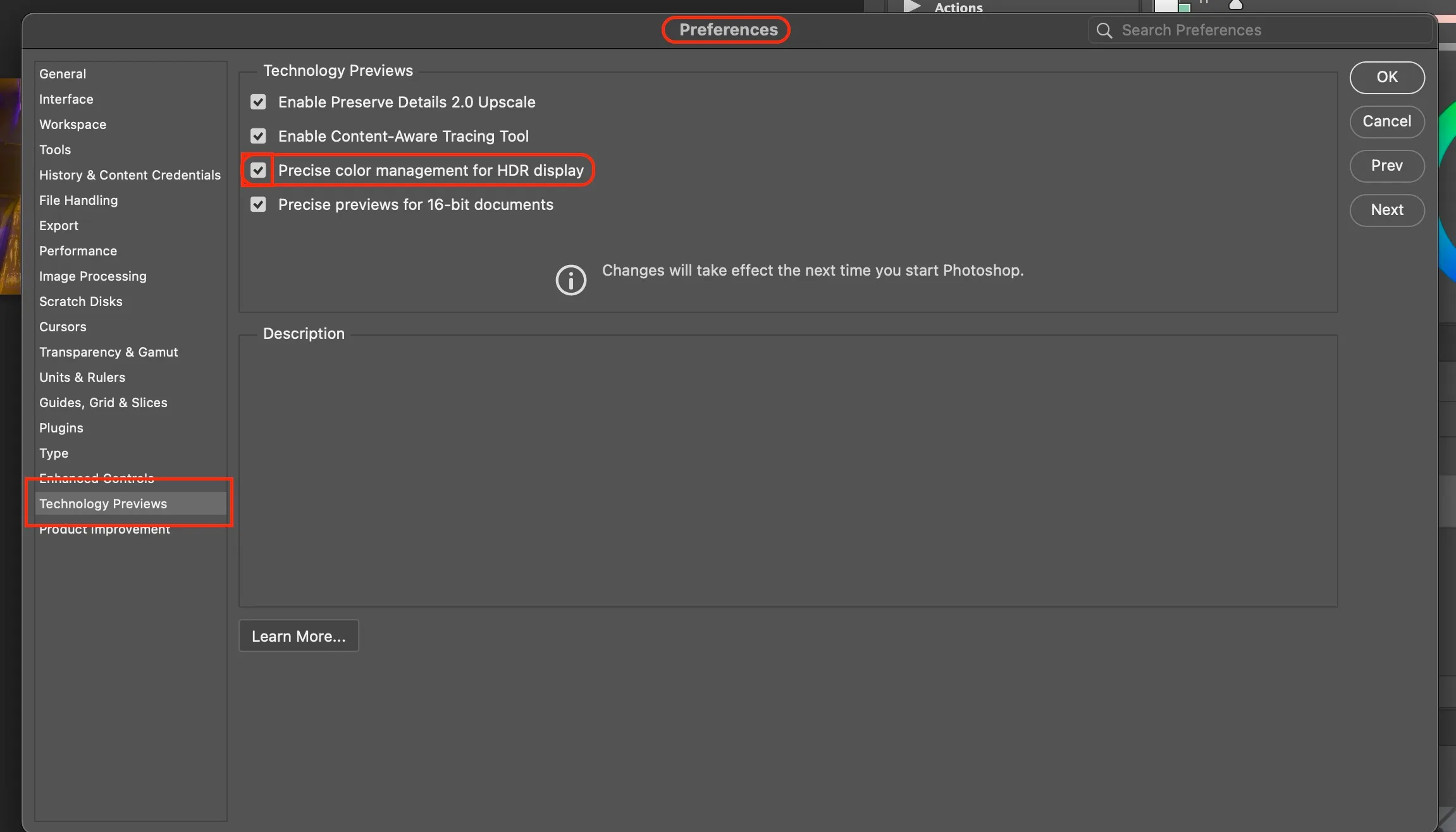
The export may not display as HDR on your desktop, but it should render correctly inside Photoshop if you enable Preferences > Technology Previews > Precise color management for HDR display.
Test results: HDR JPEG vs HDR PNG
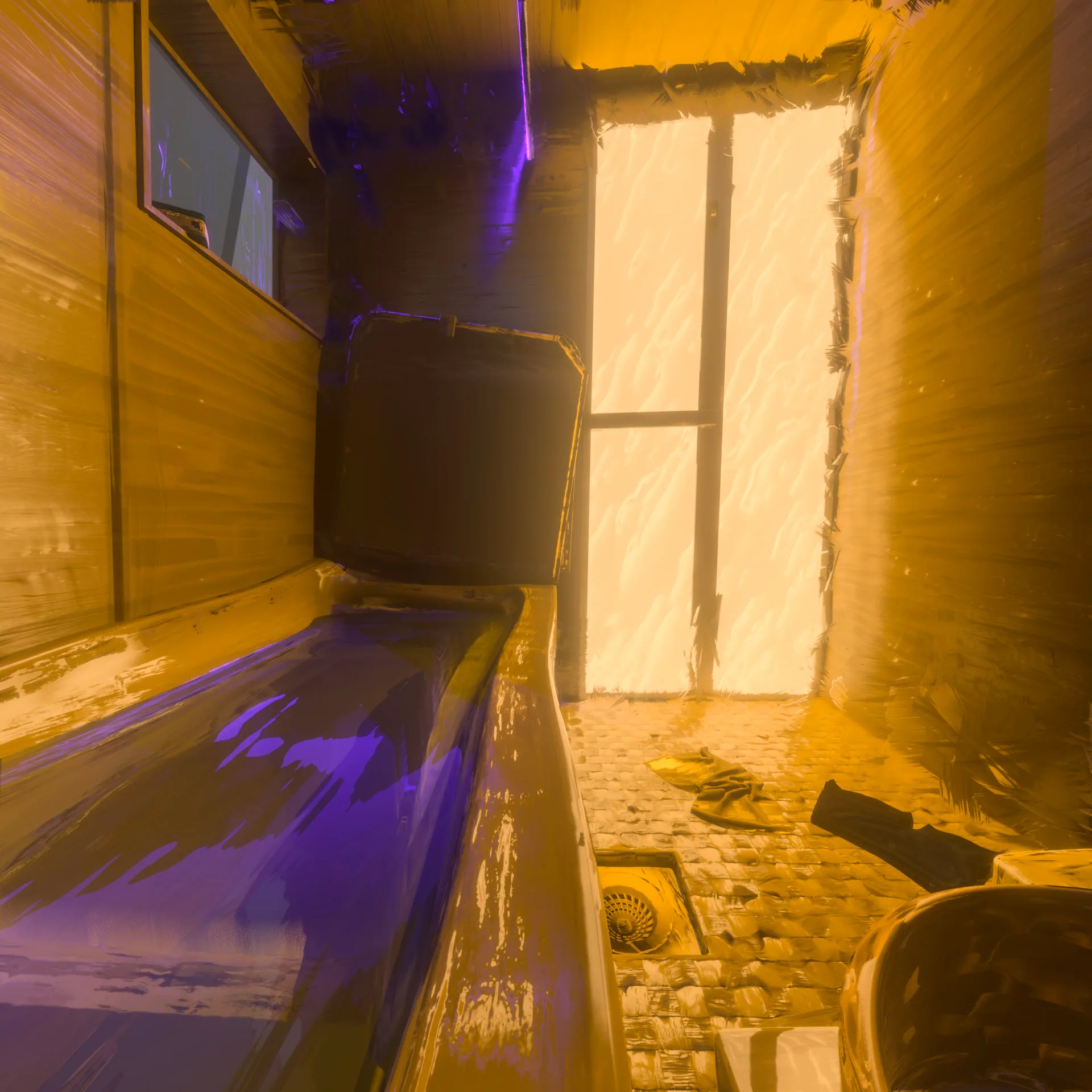
Camera Raw, exported as JPEG, HDR P3, 1920 x 1920, 599 KB. The HDR range shows correctly in Chrome if your screen supports the P3 color profile.
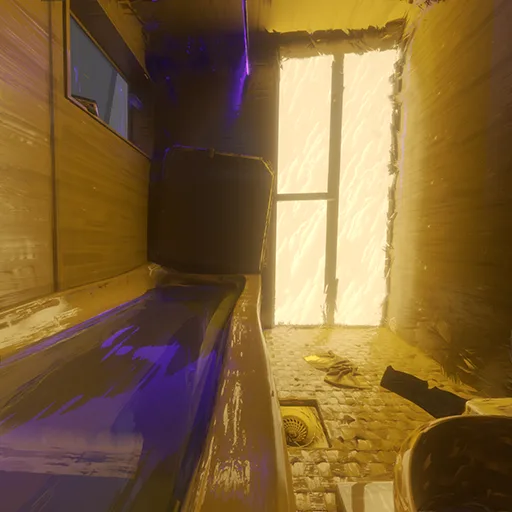
Camera Raw, exported as PNG, HDR P3, 512 x 521, 1 MB (the 1920 x 1920 version was around 15 MB). I could not get the HDR part of the picture to show with this export.
AVIF and JPEG XL
I wanted to test .avif and JPEG XL (.jxl) as well, but I could not upload either format to WordPress or to social platforms to try them.
Still looking for a better method
If you have a way to display pictures from .exr files created in Blender, Houdini or Unreal Engine as HDR images on social networks and the web, I would love to hear it. Feel free to DM me on Instagram (@neoyume).
Thank you, Cedric.
FAQ
How do I export an .exr file as an HDR image for the web?
Open the .exr in Photoshop, edit it through Camera Raw, then save as JPEG with the HDR box checked and the P3 color space selected. The resulting HDR JPEG displays with its full highlight range in Chrome on a compatible screen, and falls back to a normal SDR image everywhere else.
Which browsers display HDR JPEGs?
In my April 2024 tests, Chrome showed the HDR range of a P3 HDR JPEG correctly on a display that supports the P3 profile. Other browsers and platforms recompressed or flattened the file to SDR.
Why do my HDR photos look flat on Instagram and Threads?
Most social platforms re-encode uploaded JPEG, PNG, AVIF and HEIC files to their own settings, which strips the HDR gain data. Native iPhone HEIC files survive because the apps recognise that specific format, while an HDR HEIC exported from the Mac Preview app usually does not. Publishing an HDR MP4 or H.265 video is currently the most reliable way to keep the range on social media.
What color space should I use for an HDR image on the web?
Display P3 is the safest choice for now. It is the profile Apple devices handle best, and it is what worked in my Chrome tests. Rec.2020 covers a wider gamut but has less consistent support across browsers and screens.
Does an HDR JPEG still work on a screen that is not HDR?
Yes. A screen or browser that cannot read the HDR data shows the base SDR image, so the file stays safe to publish as a normal picture. You only see the extra highlight range on an HDR, P3-capable display.
Can I export HDR images straight from Blender?
Blender renders in high dynamic range and writes it to .exr, but it does not export a web-ready HDR JPEG. You still need a step in Photoshop Camera Raw, or another tool that writes an HDR gain map, to produce a file a browser can show.